
Services
Everything you need, in one dashboard
Start, stop, and restart services. Open the right URL or folder in one click. When something breaks, open the logs and fix it without guessing.
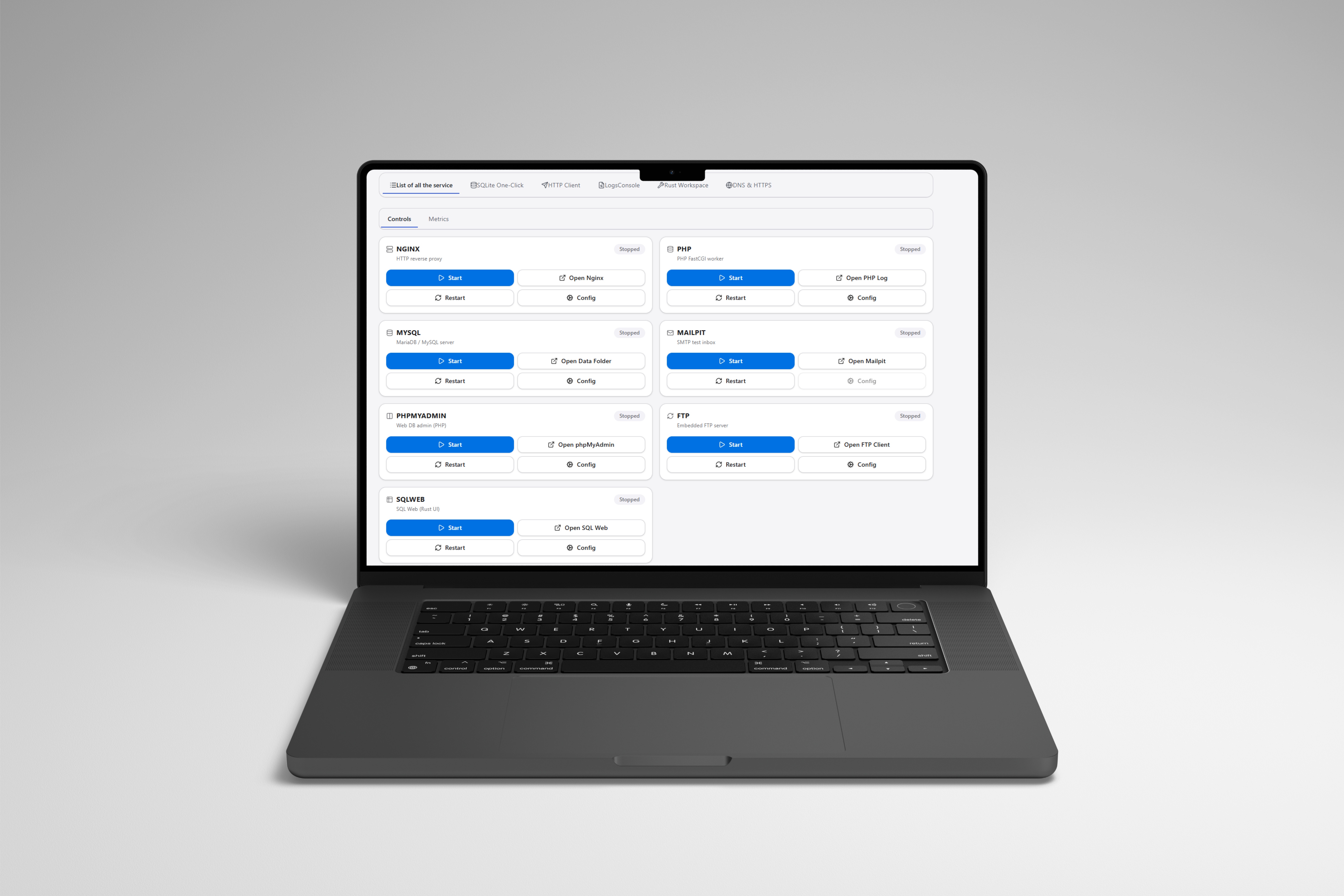
Local web services for Windows
Run your local web environment from one clean dashboard. Start the services you need, keep configs organized, and use logs to fix issues fast.
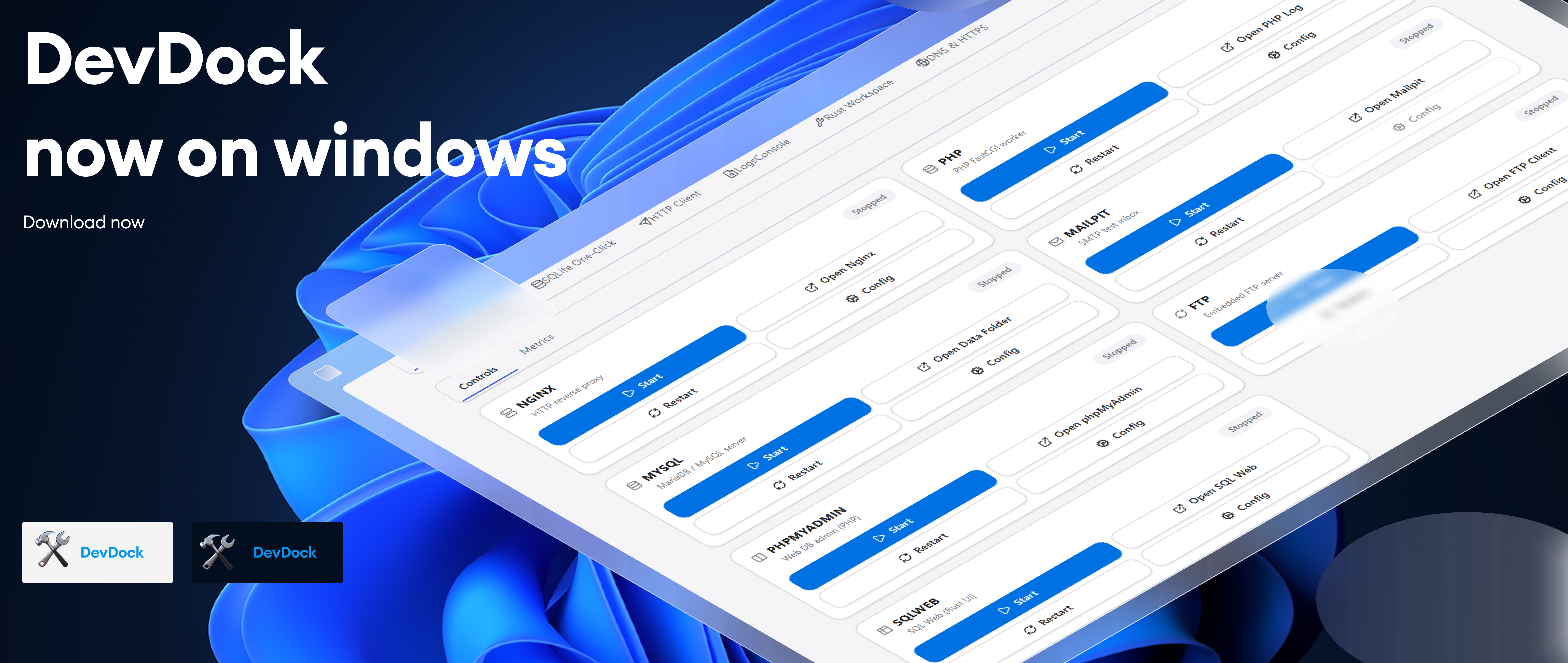
DevDock gives you one place to manage local services. Start and stop what you need, open the right tools fast, and keep your work moving without repetitive setup.
Services
Start, stop, and restart services. Open the right URL or folder in one click. When something breaks, open the logs and fix it without guessing.
View logs per service and spot errors quickly. Use built in tools to test endpoints and verify behavior while you develop.
Create a quick local database when you need one. Keep project helpers nearby so common tasks stay simple.
A complete set of services for local development, plus optional helpers for local domains and HTTPS when you need them.
Services
Start the services you need for your project and keep them all in one place.
A quick look at the dashboard, tools, and service views.
Skip repetitive setup. DevDock helps you get your local environment running fast, then stay productive with the right tools close by.
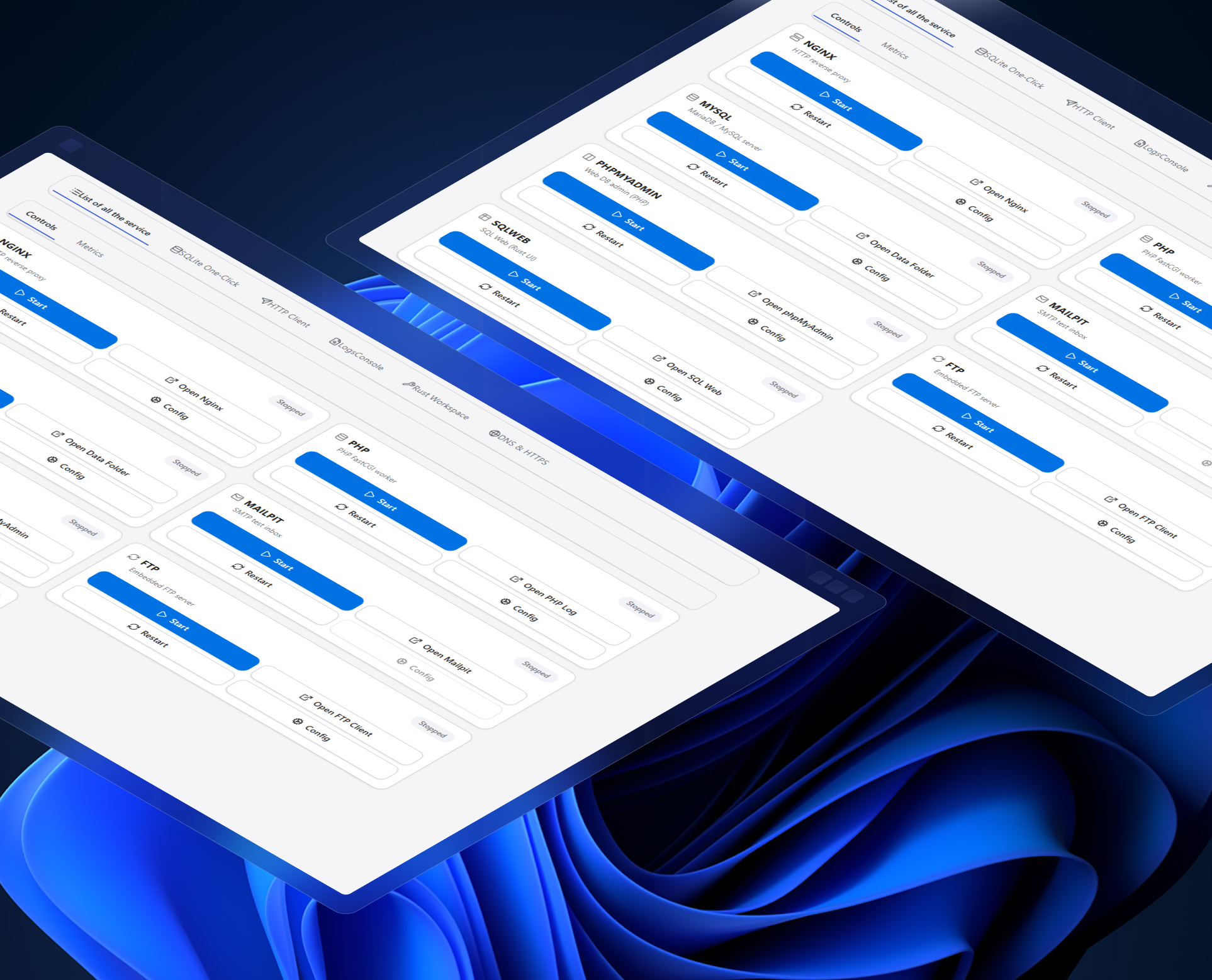
Start and stop the services you need from one place. No more hunting for separate installers, toggles, and shortcuts every time you begin work.
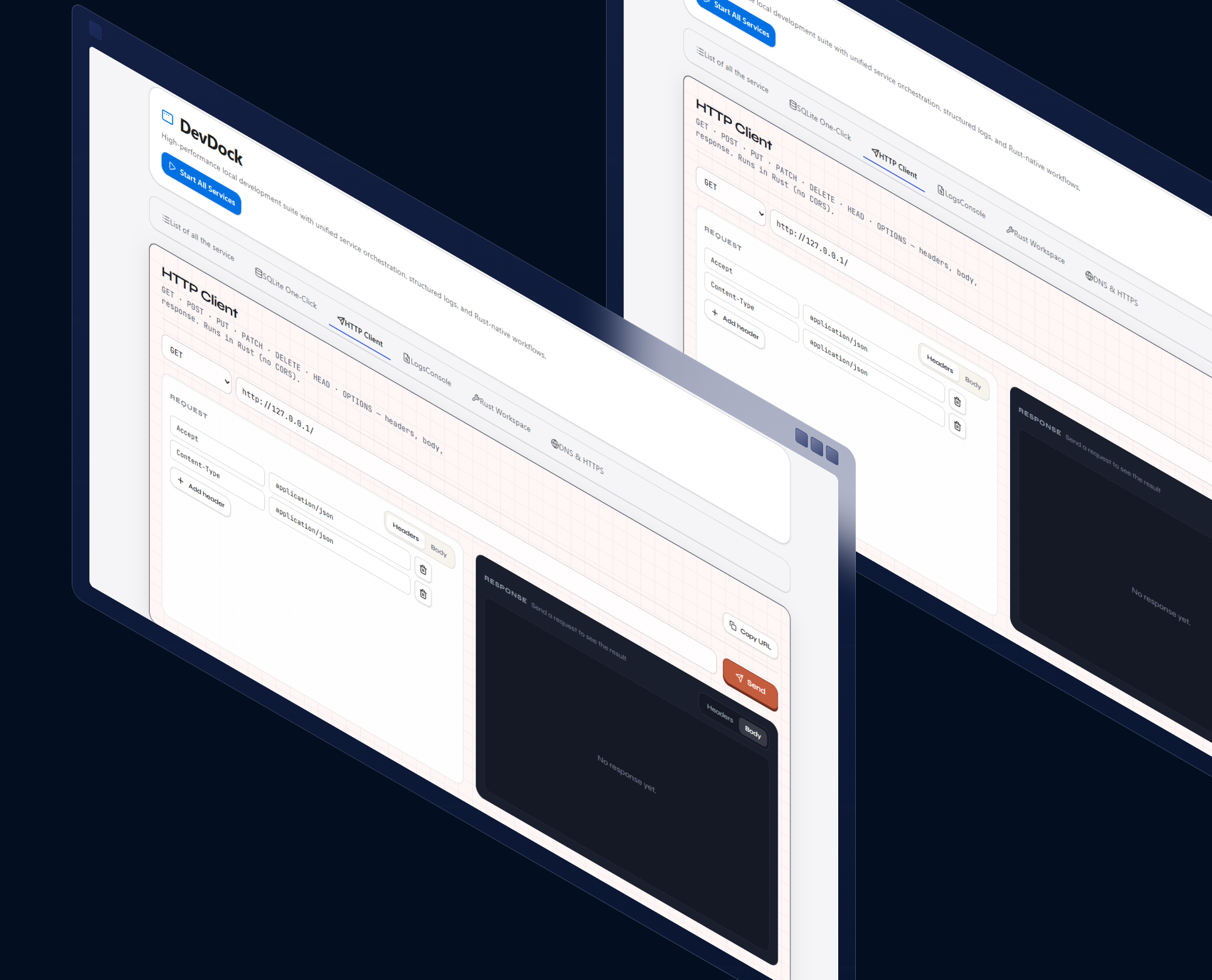
When something fails, you should not guess. DevDock puts service logs in one place so you can quickly see what happened and what to fix.
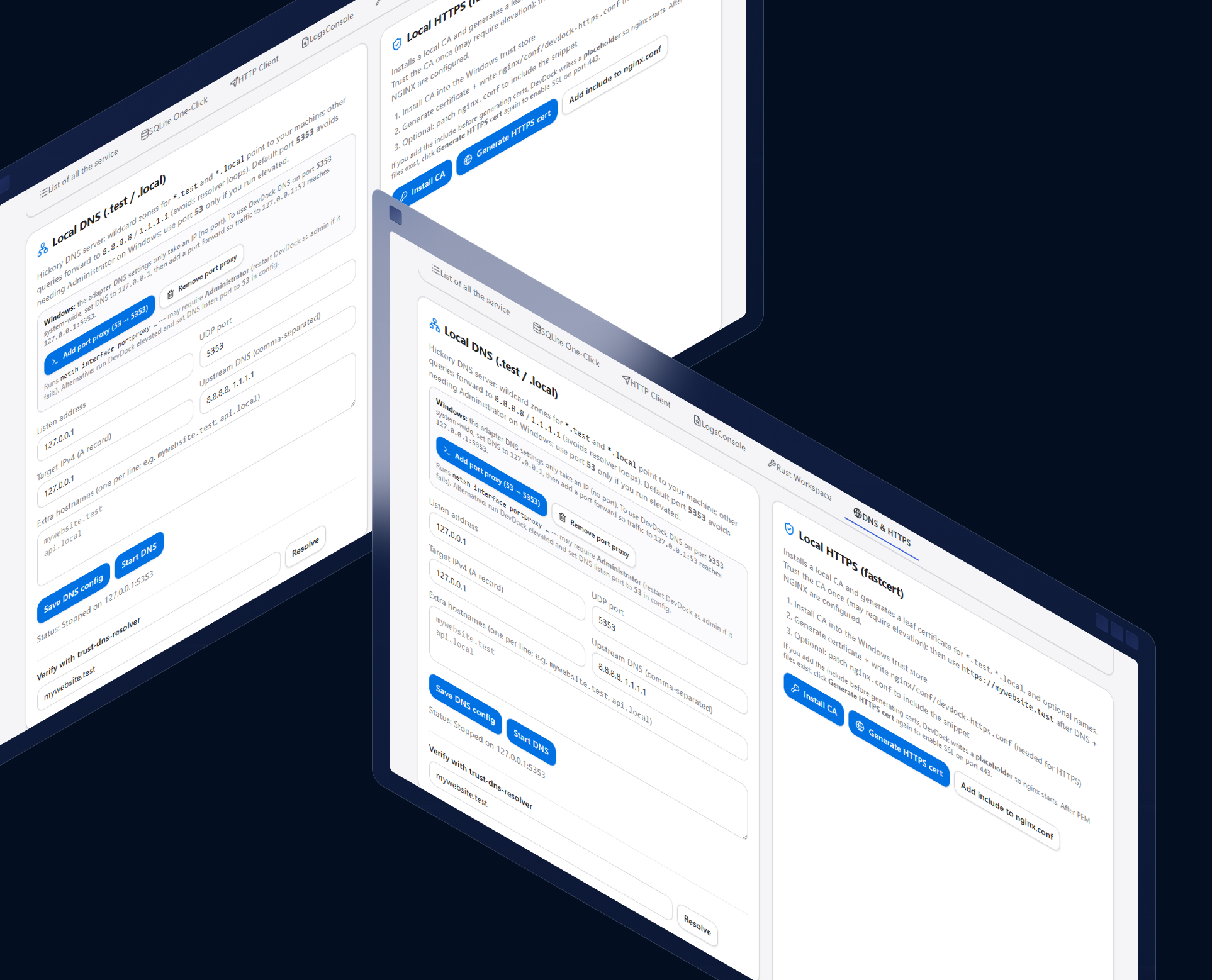
Useful tools sit next to your services so you stay focused. Do common tasks without switching between a dozen separate apps.
Simple answers to common questions.
DevDock is a Windows desktop app that helps you run and manage a full local web environment from one place.
Yes. DevDock is designed for Windows and focuses on making local services feel simple and reliable.
It is the main folder DevDock uses to keep local service files organized. If you ever need to find configs, logs, or your web root, you will find them there.
Put your project files in the web root folder inside C:\DevDock. Then start the web service in DevDock and open localhost in your browser.
Defaults depend on your configuration. If something will not start, DevDock shows the reason, and the logs will point to common issues like a port conflict.
Use the Download button to open the latest release and run the Windows installer.
It helps you test your local API endpoints quickly without needing extra tools.
DevDock shows logs per service so you can filter and focus. You can also open log files on disk when you need to share or review them.
Yes. For most services you can open the config from DevDock, make changes, save, and restart the service so changes apply.
Open the service logs and look for the first error. The most common causes are a port conflict, missing permissions, or a misconfigured option. Fix the issue, then restart the service.
Download the latest release, install on Windows, and follow the guide to start your local environment.